Connect bridges
Find, pair, and manage multiple Philips Hue bridges.
You can find a Philips Hue bridge online or enter its local IP address yourself. In either case, the computer running Hue Browser must be able to reach the bridge over your home network, including when Hue Browser runs in Docker. Pairing requires a physical press of the button on the bridge.
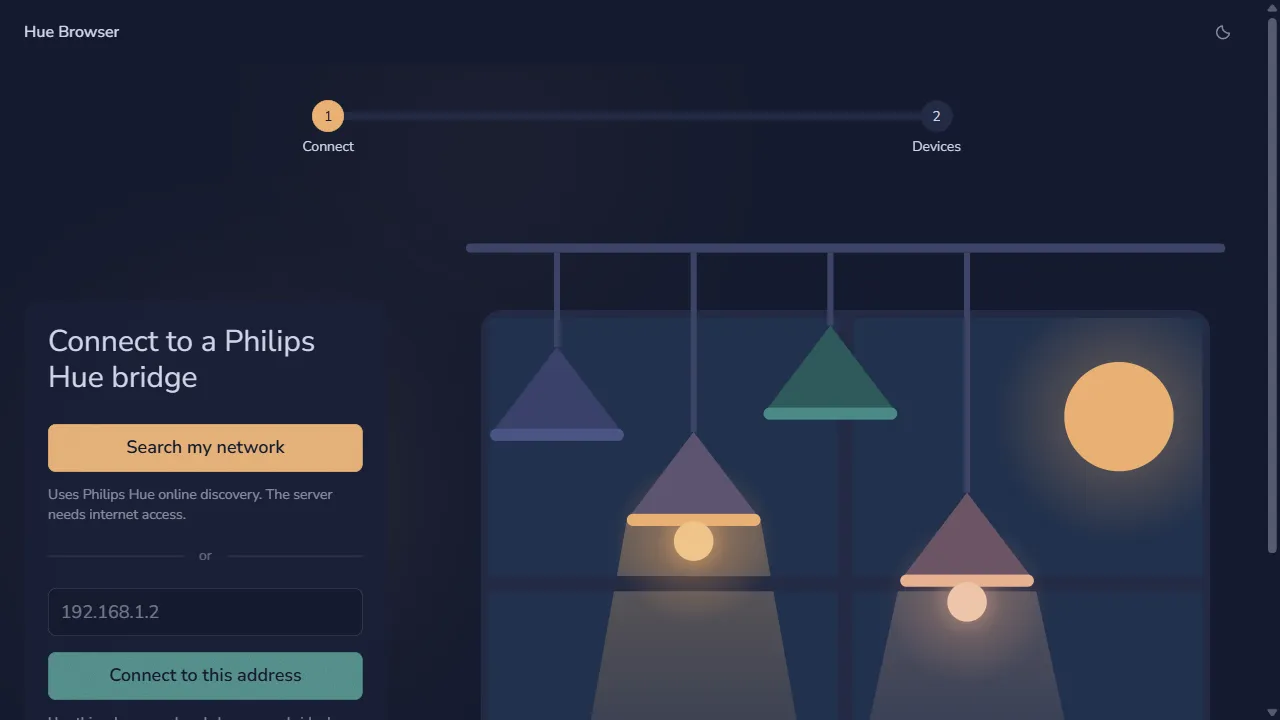
Find bridges online
Search my network asks the Philips Hue online discovery service for bridges associated with your network. The computer or container running Hue Browser needs internet access for this option.
- Select Search my network. Each discovered card shows a bridge ID and local IP address right away.
- Wait for the indicator beside each IP address while Hue Browser checks that bridge over secure local HTTPS. If it responds, its name appears in the card and you can select it.
- Select the bridge you want to pair. If a card says Name unavailable and shows an error, try the address shown on that card using the manual method below.
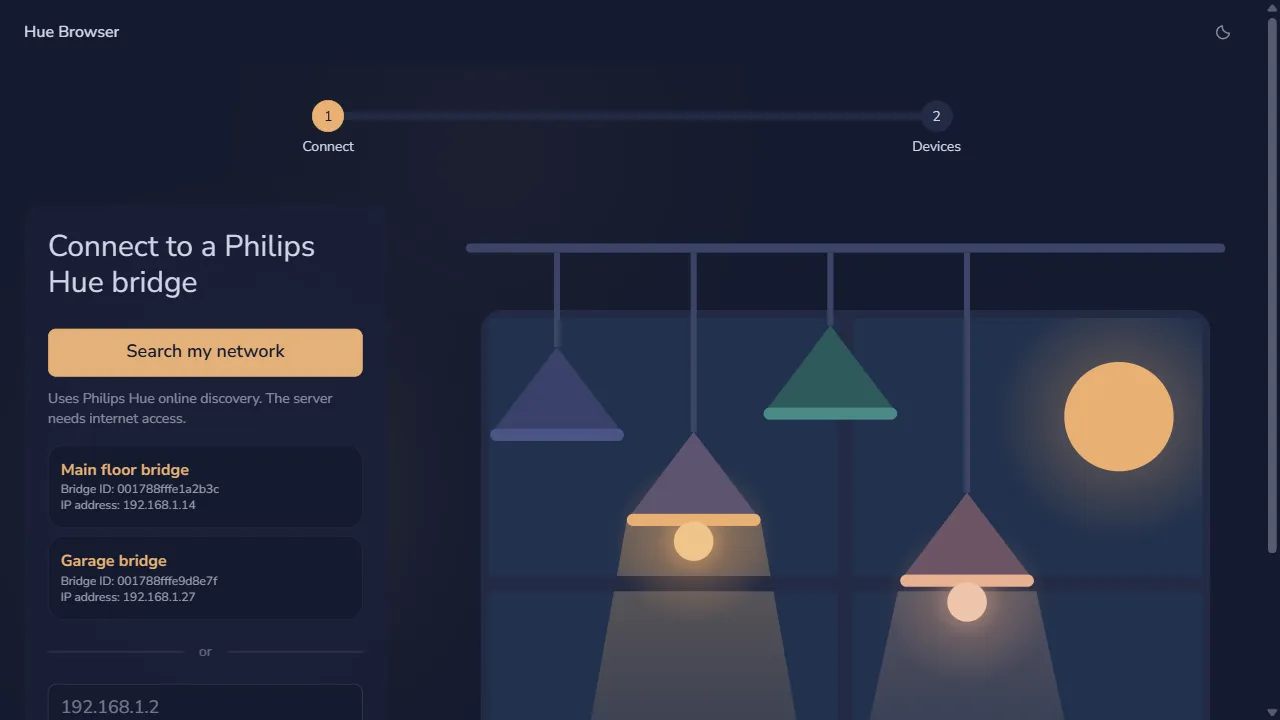
Online discovery may return no bridges even when a bridge is on your network. If the service is rate-limited and provides a wait time, Hue Browser displays it; otherwise you can wait before searching again or use the manual method. An HTTP 520 response shows a wait time only if the service provides one; 520 alone does not establish that you were rate-limited. A name lookup may also fail when the computer running Hue Browser cannot reach the bridge locally.
Enter an IP address
Manual entry works without the online discovery service. Find the bridge’s local IPv4 address in your router or Philips Hue setup, then use the address field under or.
- Type the address, such as
192.168.1.2, in Bridge address. Enter only the address, withouthttps://or a port number. - Select Connect to this address. Hue Browser checks the bridge’s identity over secure local HTTPS and shows its name and address before pairing.
If the check fails, confirm that the address belongs to the bridge and that the computer or container running Hue Browser can reach it. A certificate error may mean the address points to another device or the bridge needs a firmware update; Hue Browser does not bypass certificate checks.
Authorize and save the bridge
Once Hue Browser shows the pairing prompt, authorize the connection on the physical bridge.
- Press the button on top of the selected bridge.
- Select Pair this bridge within 30 seconds. If the button-press window expires, press it again and retry. Use another bridge returns to the connection options.
- Look for the confirmation and the bridge under Paired bridges. Repeat the process for any additional bridges.
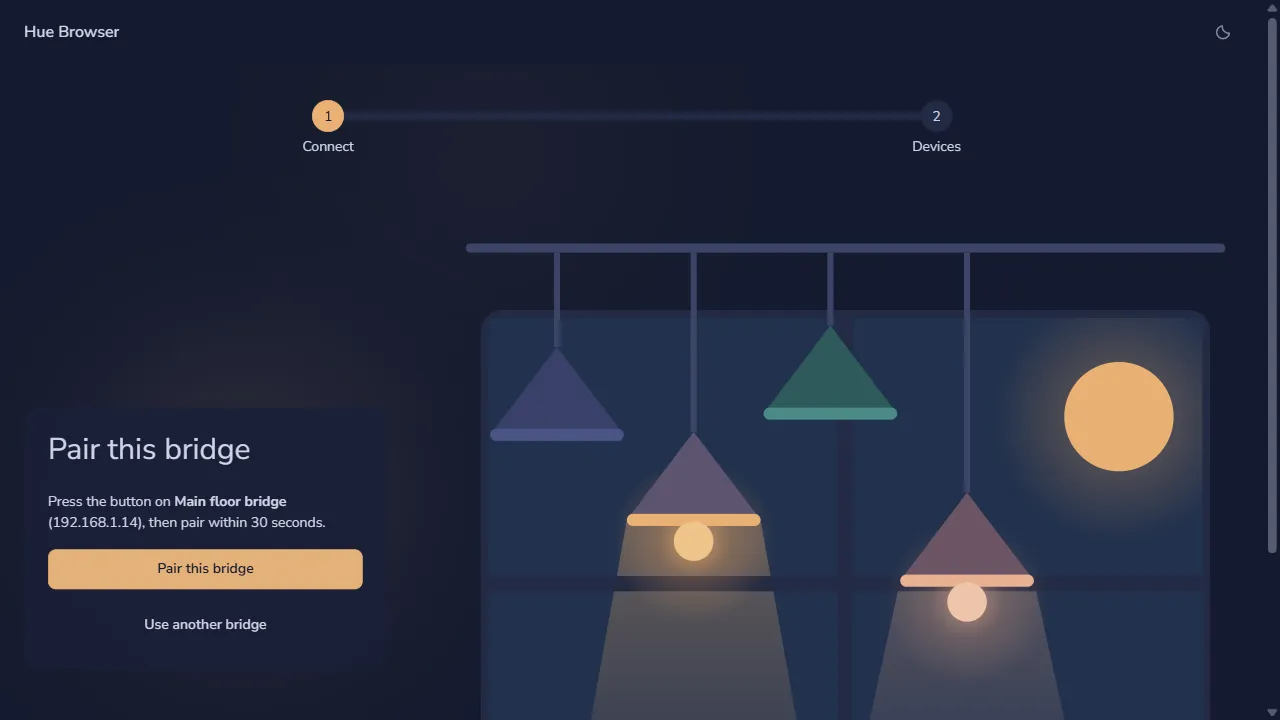
After pairing, Hue Browser opens the device dashboard. Use Manage bridges to add another bridge or forget one. Application keys are saved in this browser’s localStorage, not in the Docker container. Use a trusted browser profile: another browser or a cleared profile must pair again. Forget removes a bridge from this browser after confirmation, but does not revoke its application key on the physical bridge.